Customize Recommendations
The Showpad Insights and Recommendations app is a robust tool that suggests relevant Showpad assets for your sales representatives, as well as provide insights on them.
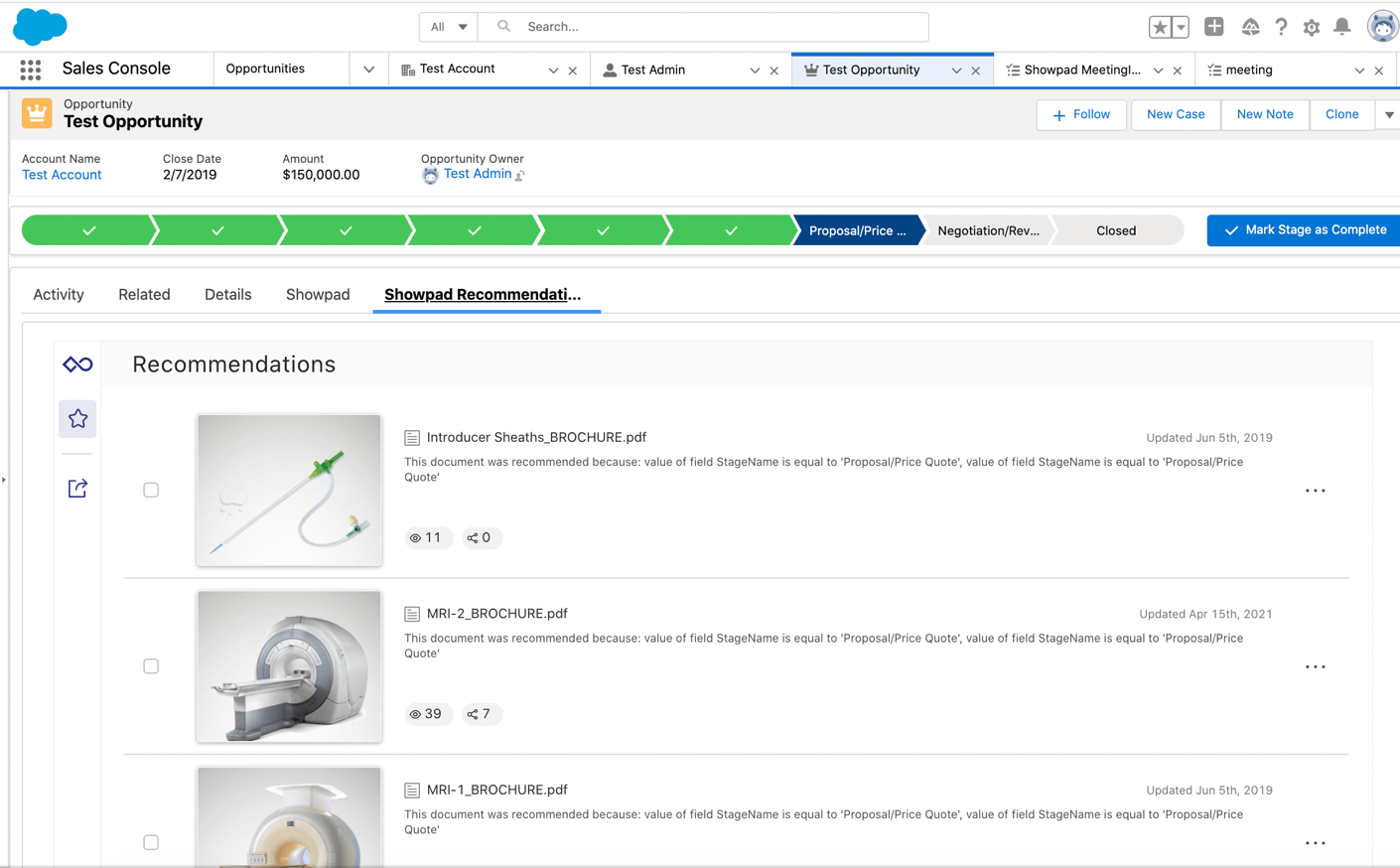
From here, your sales reps can initiate several Showpad actions, such as sharing recommended content and adding content to Collections and Shared Spaces.
Typically, Showpad shares are logged back to Salesforce as activities (completed Tasks). When a sales rep initiates a link or email share from the assets in the Recommendations widget, Showpad will automatically log back the share as an activity to the current record the widget is embedded on.
- Custom assets? Create an Apex controller extension that returns your asset IDs
- Custom Visualforce? Create a Visualforce page with your controller extension
- Related records? Use
personObjectsandrelatedObjectscanvas parameters
The list of recommended assets shown on a record layout can be populated via:
| Source | Description |
|---|---|
| Admin App | Recommendation rules configured in Showpad's Admin App. Use this for most cases. |
| Custom logic | Your own Apex logic that overrides the default rules. Use sparingly—only when the Admin App rules can't meet your requirements. |
Configuration
Test all customizations in a Salesforce sandbox or Developer Edition before deploying to production.
To customize recommendations, you must have:
- Plan: Ultimate | Advanced or Expert
- Permissions: Administrator access to Showpad's Admin App
- Config:
- Connected your Salesforce organization to your Showpad account,
- Installed the Showpad for Salesforce app,
- Configured Showpad's Insights and Recommendations app and Visualforce pages,
- Experience with Visualforce and Apex.
When configuring the logic for recommendations, you can customize one or both of:
- the list of assets displayed in the Recommendations section of the widget
- the records that are deemed related to an asset
Recommended Assets
Use your own Apex logic to specify which assets to recommend and when (e.g., displaying an asset regardless of preset rules). Any assets you specify will always appear before rule-based recommendations.
1. Get asset IDs
Retrieve the assetId for each asset you want to recommend:
- API:
GET /assets - Admin App: Export a list of files (CSV)
2. Create an Apex controller extension
-
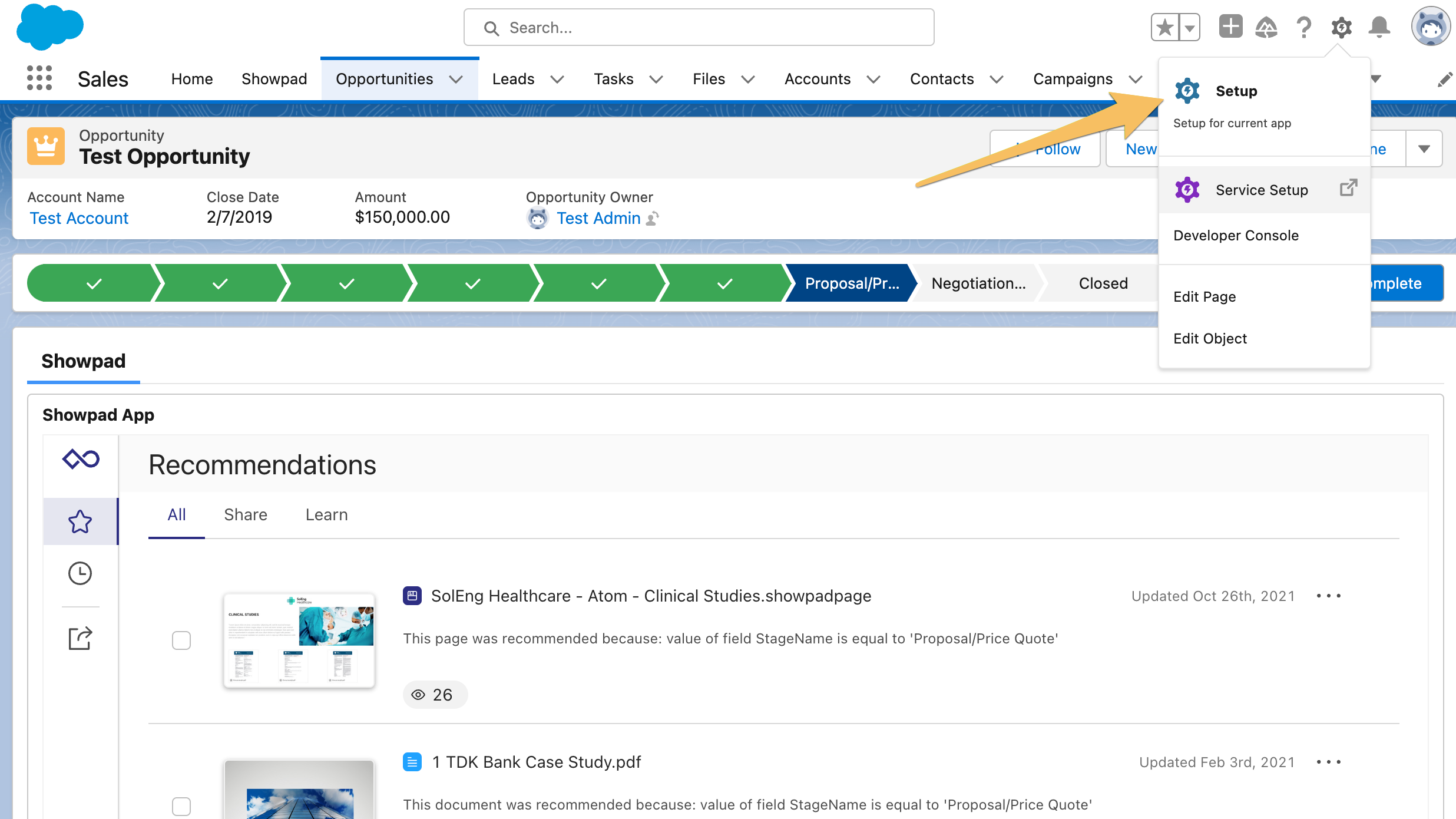
In Salesforce, click the gear icon and select Setup.
-
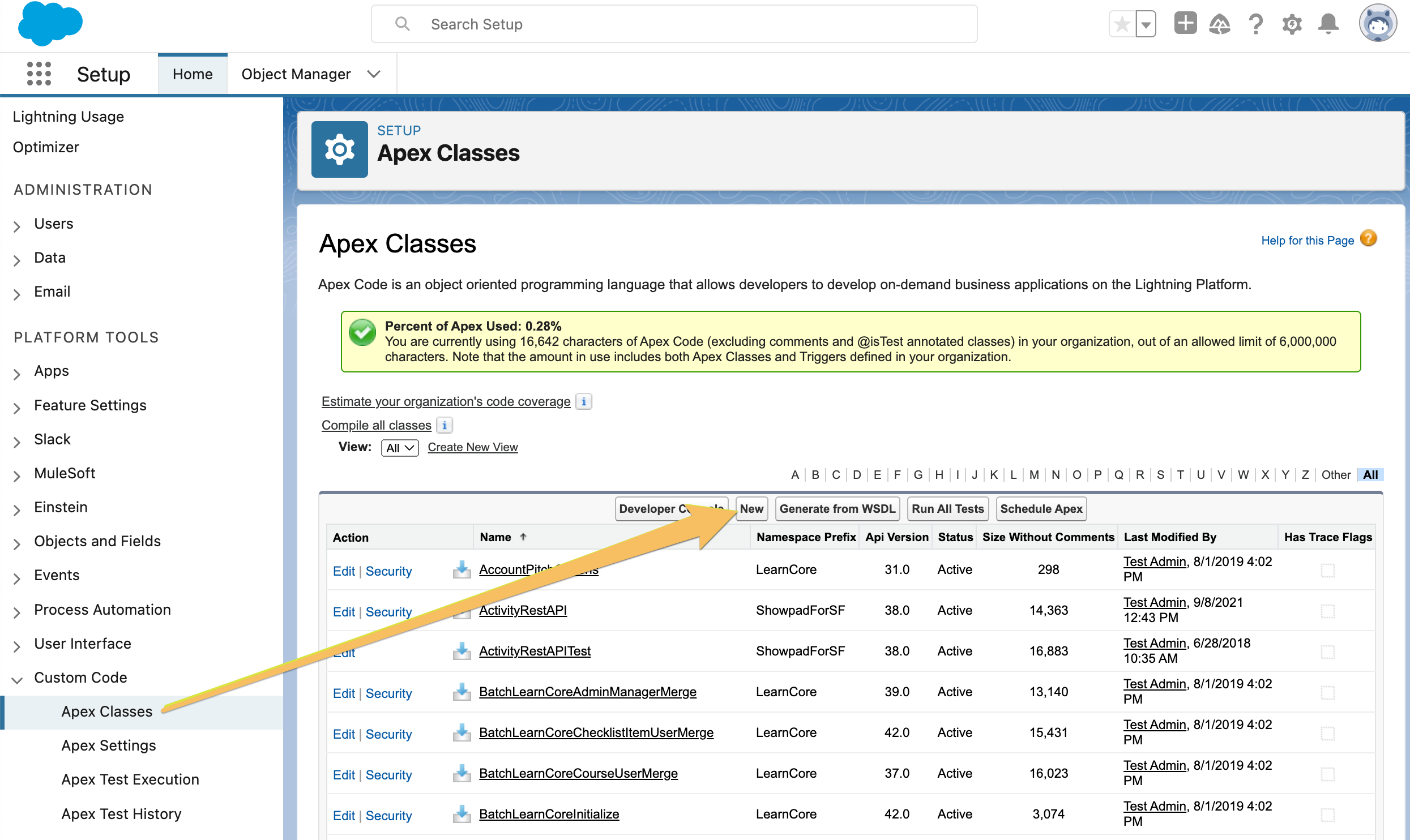
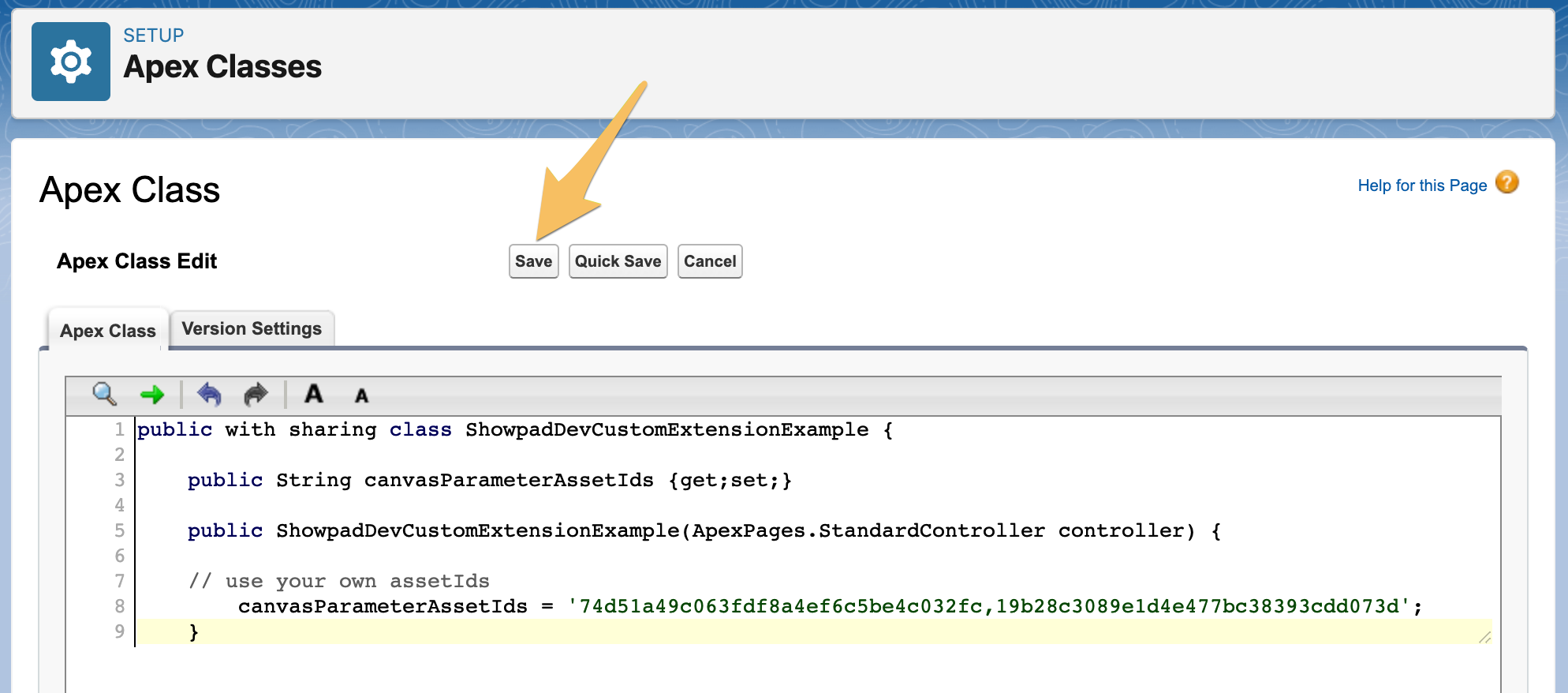
Navigate to Custom Code > Apex Classes and click New.
-
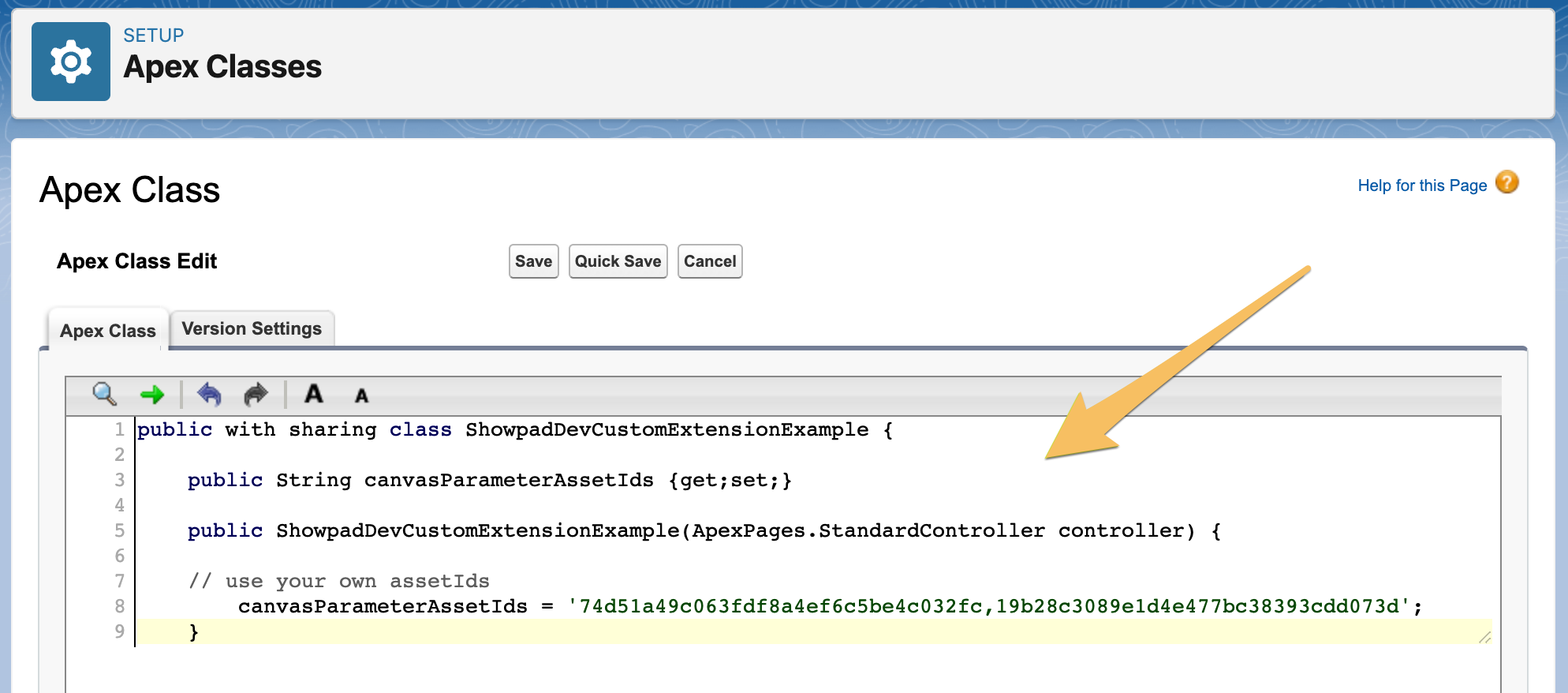
Paste the following code:
public with sharing class ShowpadDevCustomExtensionExample {
    public String canvasParameterAssetIds {get;set;}

    public ShowpadDevCustomExtensionExample(ApexPages.StandardController controller) {
        canvasParameterAssetIds = '74d51a49c063fdf8a4ef6c5be4c032fc,19b28c3089e1d4e477bc38393cdd073d';
    }
}
-
Click Save.
3. Create a Visualforce page
This example uses Opportunity pages. For other objects (Contact, Account, Lead), create a separate Visualforce page and
update the standardController attribute.
-
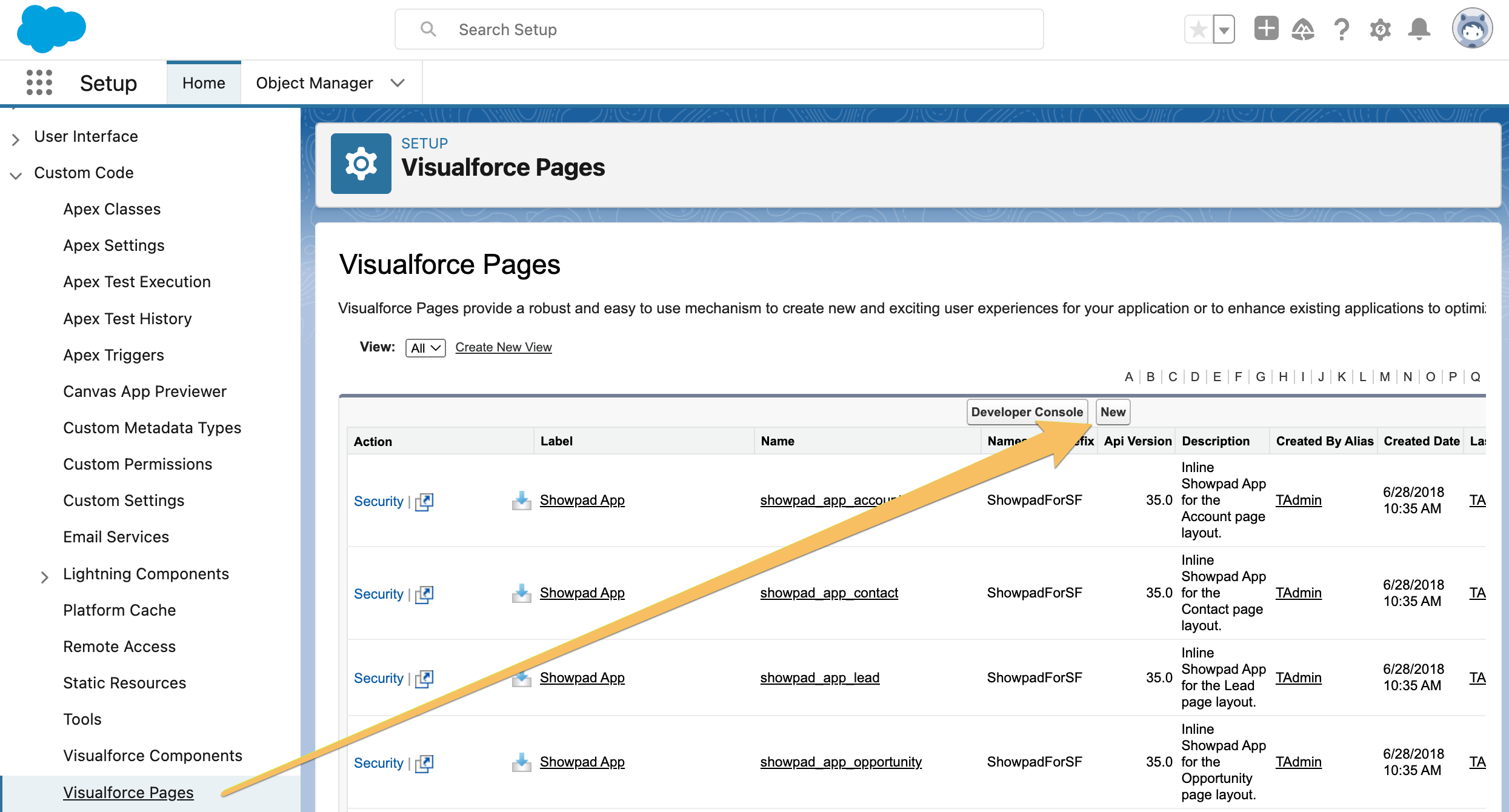
Navigate to Custom Code > Visualforce Pages and click New.
-
Enter a Label and Name, then replace the default markup with:
<apex:page
  standardController="Opportunity"
  extensions="ShowpadForSF.ShowpadWidgetControllerExtension,ShowpadDevCustomExtensionExample"
>
  <apex:canvasApp
    id="showpad_canvas_app"
    developerName="Showpad_Canvas_App"
    parameters="{
        domain:'myorganisation',
        application: 'crm-widget',
        assetIds: '{!canvasParameterAssetIds}',
        recipients: '{!recipientEmails}'
    }"
    entityFields="Id,Name,accountId"
    width="100%"
    maxHeight="infinite"
    scrolling="auto"
    height="100%"
  />
  <apex:include pageName="ShowpadForSF__showpad_app_widget_sizing_logic" />
</apex:page>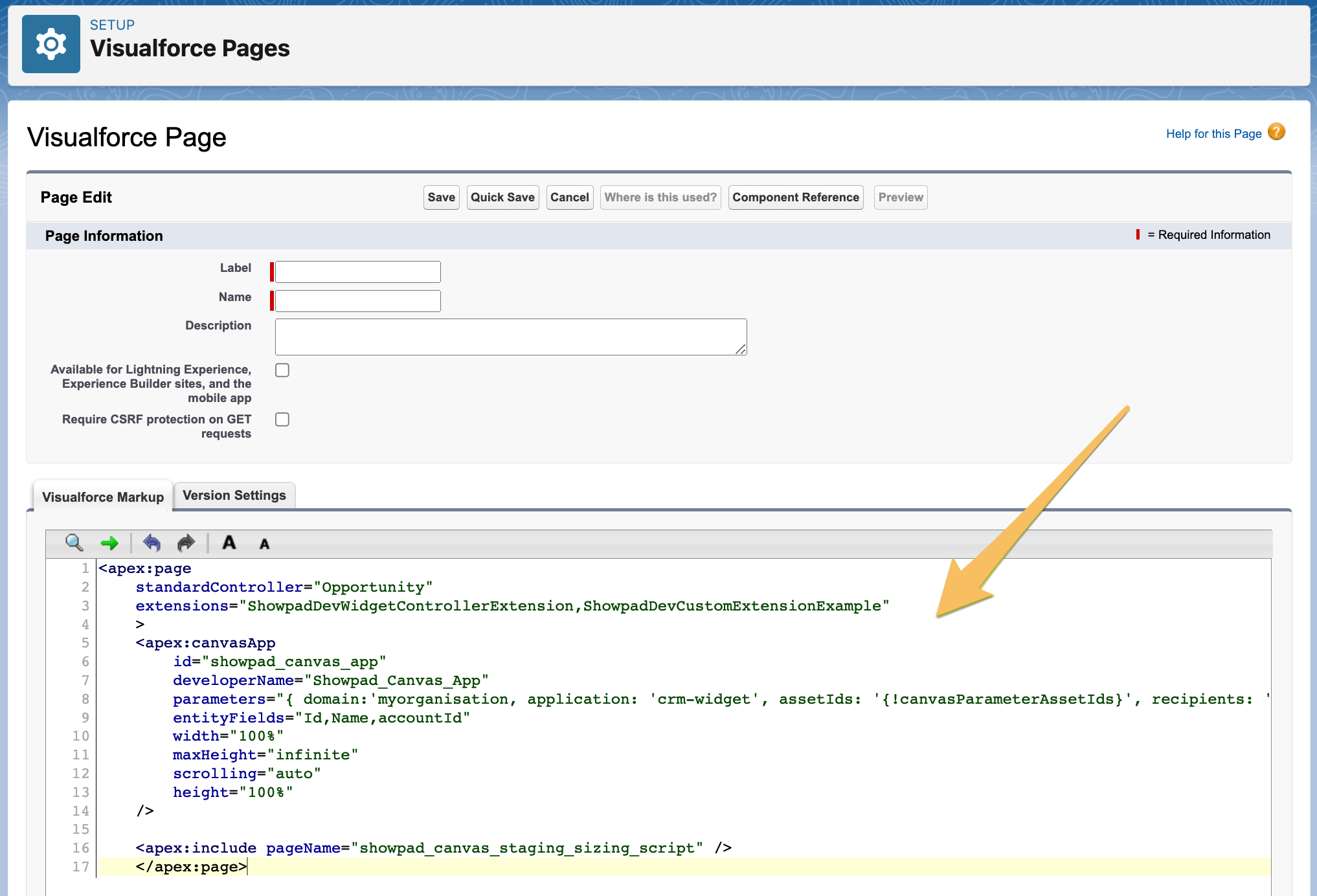
4. Add to record layout
Add your Visualforce page to a record layout. See Add Showpad's Insights and Recommendations app to record pages.
Related Records
By default, Showpad populates the "related to" fields in the share dialog with the current record. Override this behavior with custom canvas parameters.
Parameters
| Parameter | Format | Example |
|---|---|---|
personObjects | contact:id or lead:id (comma-separated) | contact:003xxxxx,contact:003yyyyy |
relatedObjects | opportunity:id or account:id | opportunity:006xxxxxxx |
1. Update the Apex controller extension
public with sharing class ShowpadDevCustomExtensionExample {
    public String canvasParameterPersonObjects {get;set;}
    public String canvasParameterRelatedObjects {get;set;}

    public ShowpadDevCustomExtensionExample(ApexPages.StandardController controller) {
        canvasParameterPersonObjects = 'contact:0033t000037G2nj';
        canvasParameterRelatedObjects = 'opportunity:0063t00000uaCMz';
    }
}
2. Update the Visualforce page
<apex:page
  standardController="Opportunity"
  extensions="ShowpadForSF.ShowpadWidgetControllerExtension,ShowpadDevCustomExtensionExample"
>
  <apex:canvasApp
    developerName="Showpad_Canvas_App"
    id="showpad_canvas_app"
    parameters="{
        domain:'myorganisation',
        application: 'crm-widget',
        recipients: '{!recipientEmails}',
        personObjects: '{!canvasParameterPersonObjects}',
        relatedObjects: '{!canvasParameterRelatedObjects}'
    }"
    entityFields="Id,Name,accountId"
    width="100%"
    maxHeight="infinite"
    scrolling="auto"
    height="100%"
  />
  <apex:include pageName="ShowpadForSF__showpad_app_widget_sizing_logic" />
</apex:page>
Combined example
Combine custom asset recommendations with custom related records:
Apex controller extension
public with sharing class ShowpadDevCustomExtensionExample {
    public String canvasParameterAssetIds {get;set;}
    public String canvasParameterPersonObjects {get;set;}
    public String canvasParameterRelatedObjects {get;set;}

    public ShowpadDevCustomExtensionExample(ApexPages.StandardController controller) {
        canvasParameterAssetIds = '74d51a49c063fdf8a4ef6c5be4c032fc,19b28c3089e1d4e477bc38393cdd073d';
        canvasParameterPersonObjects = 'contact:0033t000037G2nj';
        canvasParameterRelatedObjects = 'opportunity:0063t00000uaCMz';
    }
}
Visualforce page
<apex:page
  standardController="Opportunity"
  extensions="ShowpadForSF.ShowpadWidgetControllerExtension,ShowpadDevCustomExtensionExample"
>
  <apex:canvasApp
    id="showpad_canvas_app"
    developerName="Showpad_Canvas_App"
    parameters="{
        domain:'myorganisation',
        application: 'crm-widget',
        assetIds: '{!canvasParameterAssetIds}',
        recipients: '{!recipientEmails}',
        personObjects: '{!canvasParameterPersonObjects}',
        relatedObjects: '{!canvasParameterRelatedObjects}'
    }"
    entityFields="Id,Name,accountId"
    width="100%"
    maxHeight="infinite"
    scrolling="auto"
    height="100%"
  />
  <apex:include pageName="ShowpadForSF__showpad_app_widget_sizing_logic" />
</apex:page>
Troubleshooting
| Issue | Solution |
|---|---|
| Widget not visible | Verify your Salesforce Content Recommendations configuration. |
| Assets not appearing | Ensure assetIds exist in your Showpad organization with no whitespace between IDs. |
| "No access" warning | The user isn't assigned to an Experience containing the asset. |
| Related records not linking | IDs must exist in Salesforce. Only one relatedObject is allowed (opportunity:xxx or account:yyy). |
Was this page helpful?