Showpad MCP
This feature is available via an Open Beta.
Connect Showpad to AI platforms like Claude Code or ChatGPT using the Model Context Protocol (MCP). Your AI assistants can search, summarize, and surface Showpad content directly within their workspace.

Key features
- Securely authenticate external AI systems using OAuth
- Enable AI assistants to search and summarize your Showpad content
- Integrate Showpad into your existing AI workflows
- Interact with Showpad via natural language commands (e.g., "Find assets about onboarding", "Summarize the Q3 pricing deck", "Find customer onboarding materials updated this month")
Showpad
- Plan: Contact your Account Manager (private beta)
- Permissions: Administrator access to Showpad's Admin App
- Config: Your Showpad subdomain
AI platform
- An account with your chosen AI platform
- Access to developer mode on your AI platform (if required)
Configuration
Open Showpad and your AI tool side by side so you can easily copy and paste between them.
Register an MCP client in Showpad
To connect an AI assistant, you must first create a secure connection point in Showpad. The following steps are the same for most AI platforms:
-
Log in to the Admin App and click the gear icon to open Settings.
-
Scroll to the Integrations section and select MCP.
-
Click Register Client.
-
Select your AI platform from the left panel. Some fields will pre-fill automatically. If your platform isn't listed, select Custom.
-
Fill in the registration form:
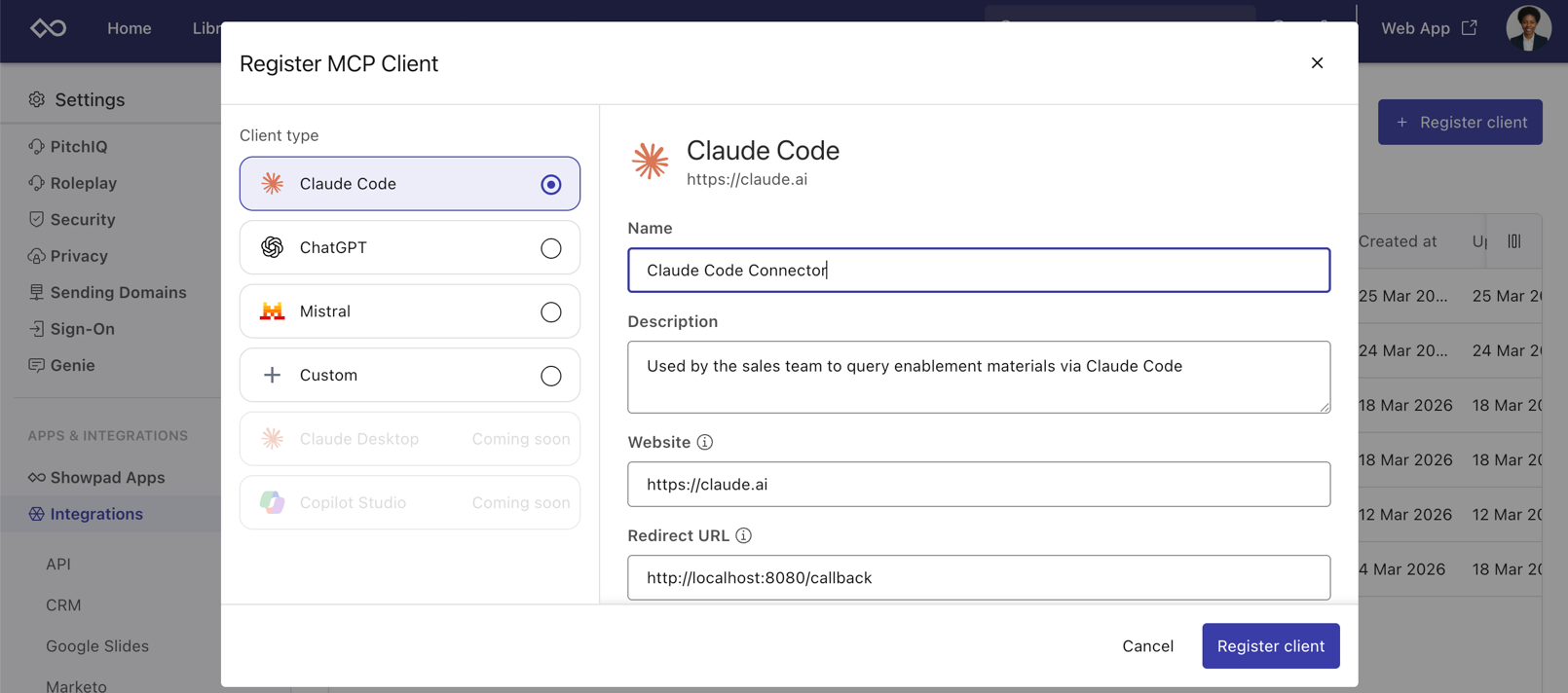
Field Description Name Enter a recognizable label for the connection. Description Add a brief note about the integration. Website Leave as-is, if pre-filled. **Redirect ** If not pre-filled, retrieve this from your AI platform's setup screen. You can also check your AI platform's MCP or integration documentation for this. Instructions Read the provided instructions for the selected AI platform and follow the steps. Your Client ID and Secret will be provided after you've registered the client. -
Click Register Client.
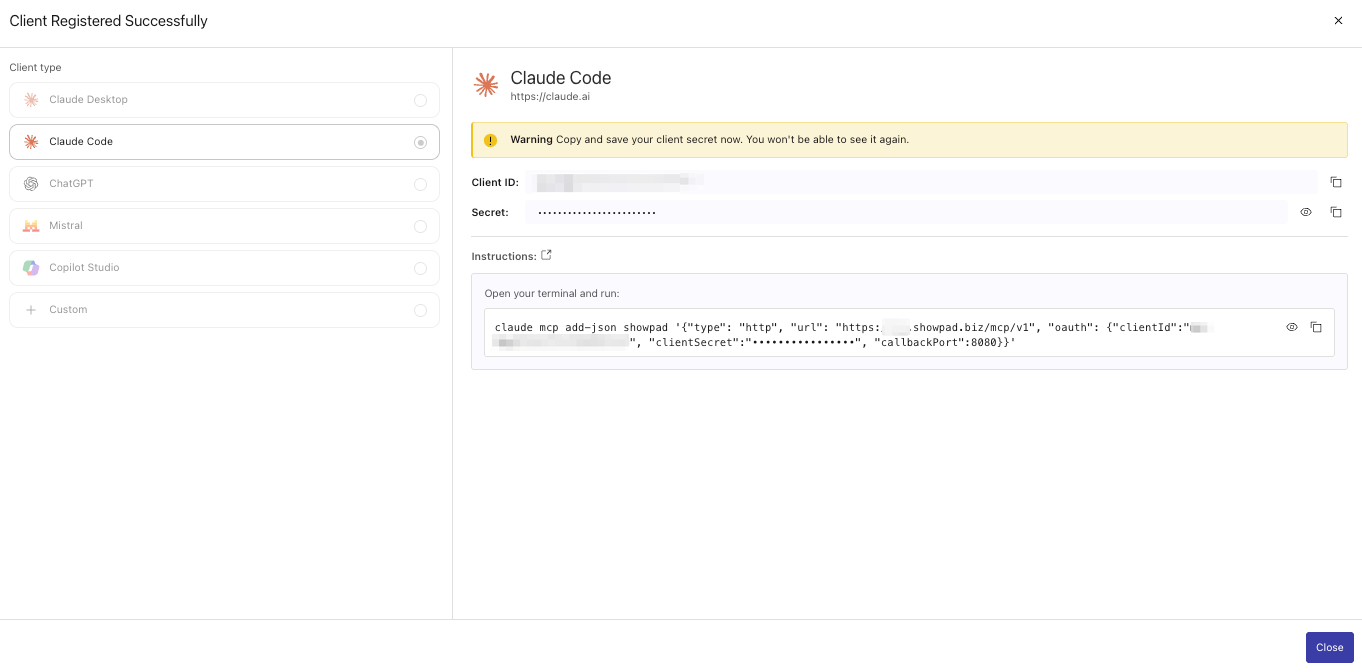 Important
Copy the Client ID and Client Secret immediately. Store them securely. The Client Secret cannot be retrieved again after you close the window. If you lose your Client Secret, delete the client and register a new one.
-
Click Close.
Permissions
Administrator access is required to register the MCP client, as described above. This is a one-time setup step. Once the client is registered, end users do not need administrator access to connect their AI assistant to Showpad.
The Showpad MCP Server uses role-based access control (RBAC). Each end user authenticates with their own Showpad credentials via OAuth, and their session is scoped to their own Showpad role and permissions. Registering the MCP client does not grant admin-level permissions to those users. A sales rep who connects an AI assistant to Showpad can only access the content and perform the actions that their Showpad role permits, just as they would in the Showpad Web App.
This means:
- Content access: Users can only search and retrieve content they are already authorized to view in Showpad.
- Actions: Users can only perform actions permitted by their own Showpad role.
- Admin registration: The admin who registers the MCP client does not share their permissions with other users through the integration.
Configure your AI platform
While every AI assistant differs, use these standard parameters to complete the setup in your AI workspace:
| Parameter | Value |
|---|---|
| MCP Server | You can use either of the following URLs:
|
| Client ID | The Client ID you copied from Showpad |
| Client Secret | The Client Secret you copied from Showpad |
| Redirect URL | The URL your AI platform provides for Showpad to redirect to after authentication. If the platform generates this automatically, ensure it matches what you entered in Showpad. |
| OAuth2 Auth URL | The Showpad URL where users are sent to log in and authorize access. Example https://yourcompany.showpad.biz/oauth/v1/auth |
| OAuth2 Token URL | The Showpad URL used to exchange the authorization code for an access token. Example https://yourcompany.showpad.biz/oauth/v1/token |
Verify the connection
Once configured, test the connection by asking your AI assistant a direct question about your Showpad content:
- Enter a prompt like: "List my Showpad assets" or "Find Showpad assets about [topic]".
- In the browser window that opens, click Allow to grant the AI assistant access to your Showpad account.
- Confirm the AI returns results from your Showpad library. If the connection is working, your AI tool will query Showpad and return results from your content library.
The "Allow Access" prompt is a one-time authorization step required during your first query.
Available tools
The Showpad MCP Server provides two types of tools: text tools that return data directly to the AI model, and MCP Apps that render an interactive visual interface in supported AI platforms.
Text tools
| Tool | What it does |
|---|---|
search | Finds Showpad assets by name, type, description, or content. Returns results with webapp URLs. |
fetch | Retrieves an asset's content by ID: text transcription, page content, or a . Returns up to 25,000 characters by default, expandable to 100,000. |
showpad_showql_guide | Returns the ShowQL syntax reference for building structured filter queries. Call this before using showpad_showql_filter. |
showpad_showql_filter | Filters assets by structured metadata — type, tags, dates, size, language, share flags, and engagement — using a ShowQL query. Results are cursor-paged. |
showpad_ask_a_question | Returns an AI-generated answer with cited sources, drawn from the user's Showpad content. |
showpad_whoami | Returns the current user's identity: name, email, and account type. |
showpad_shared_spaces_list | Lists the shared spaces the user owns or participates in. Supports status, title, and participant filters. Results are paged. |
showpad_shared_spaces_get | Returns full details for one shared space by ID: description, owner, status, sharing settings, and timestamps. |
showpad_shared_spaces_get_engagement | Returns engagement insights for one shared space: an aggregate space-level summary, or per-asset and per-participant rows over a selected period. |
MCP Apps
MCP Apps render as interactive widgets in supported AI platforms. Results stay in the widget and are not returned to the model, so the matching text tool is used when the model needs the data. MCP Apps are not available in all AI platforms. Check your platform's documentation.
| Tool | What it does |
|---|---|
showpad_browse | An interactive asset browser with thumbnails, metadata, and content-type filters. The user selects assets and the picks are passed back to the model. Backed by search. |
showpad_browse_filter | The same asset browser, populated by a ShowQL filter instead of free text. Backed by showpad_showql_filter. |
showpad_shared_space_card | A visual card for one shared space showing metadata, sharing settings, engagement KPI tiles, a participant timeline, top content, and a most-engaged leaderboard. |
Example - Claude Code
Was this page helpful?